
請先確保你的手機支援 Android 系統。
使用步驟
【Step 1】 打開包裝,將裏面的 eMaster SIM 取出
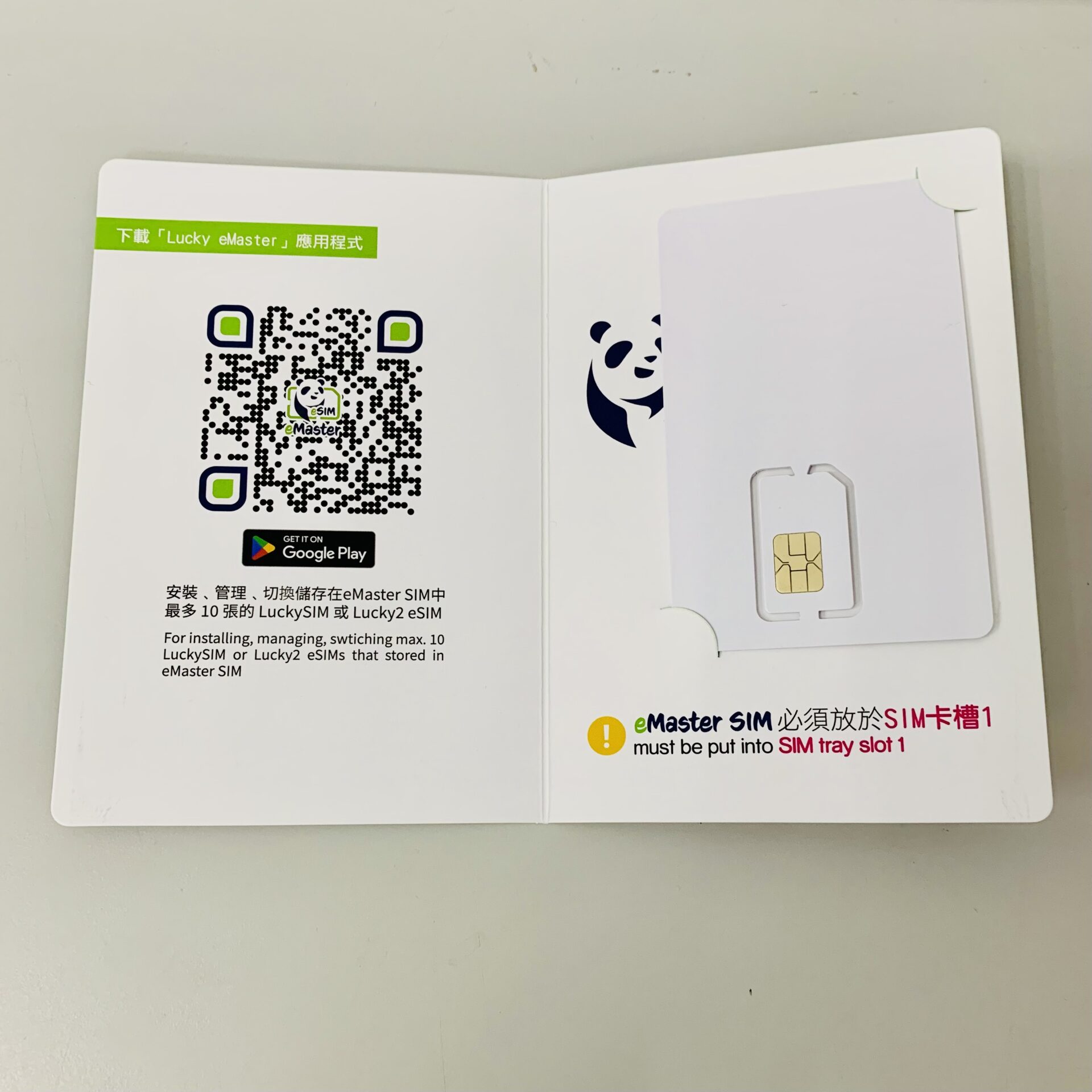
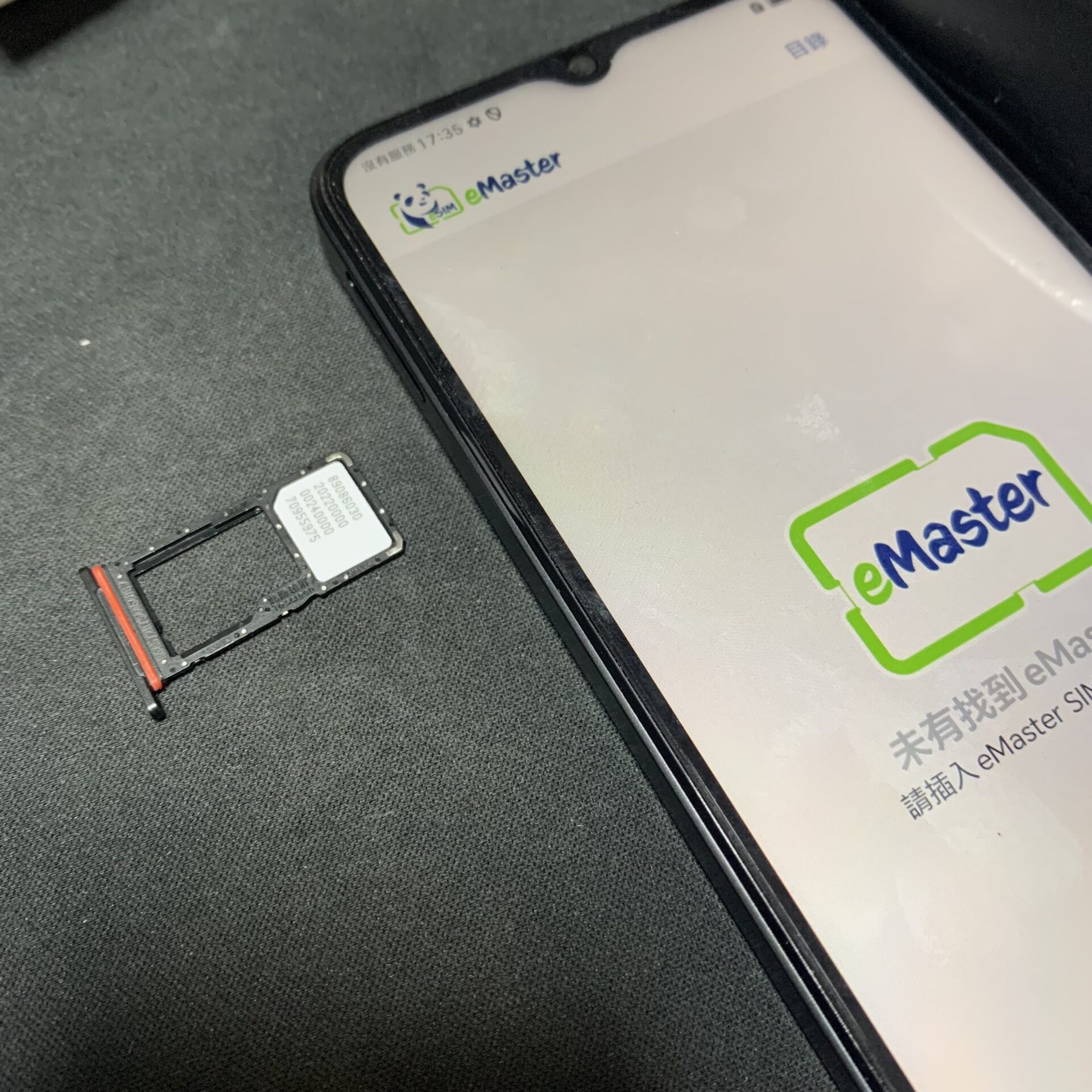
【Step 2】 將 eMaster SIM 放入你的手機卡槽中
- 如你的手機有兩個卡槽,謹記將 eMaster SIM 插入第一個卡槽 (SIM1 / Slot 1)
- 如你已有一張 SIM 卡在第一個卡槽,請將該卡移到第二個卡槽 (SIM2 / Slot 2) 繼續使用。
【Step 3】 請到 Google Play 下載及安裝 Lucky eMaster 應用程式:
https://play.google.com/store/apps/details?id=com.luckysim.luckyemaster
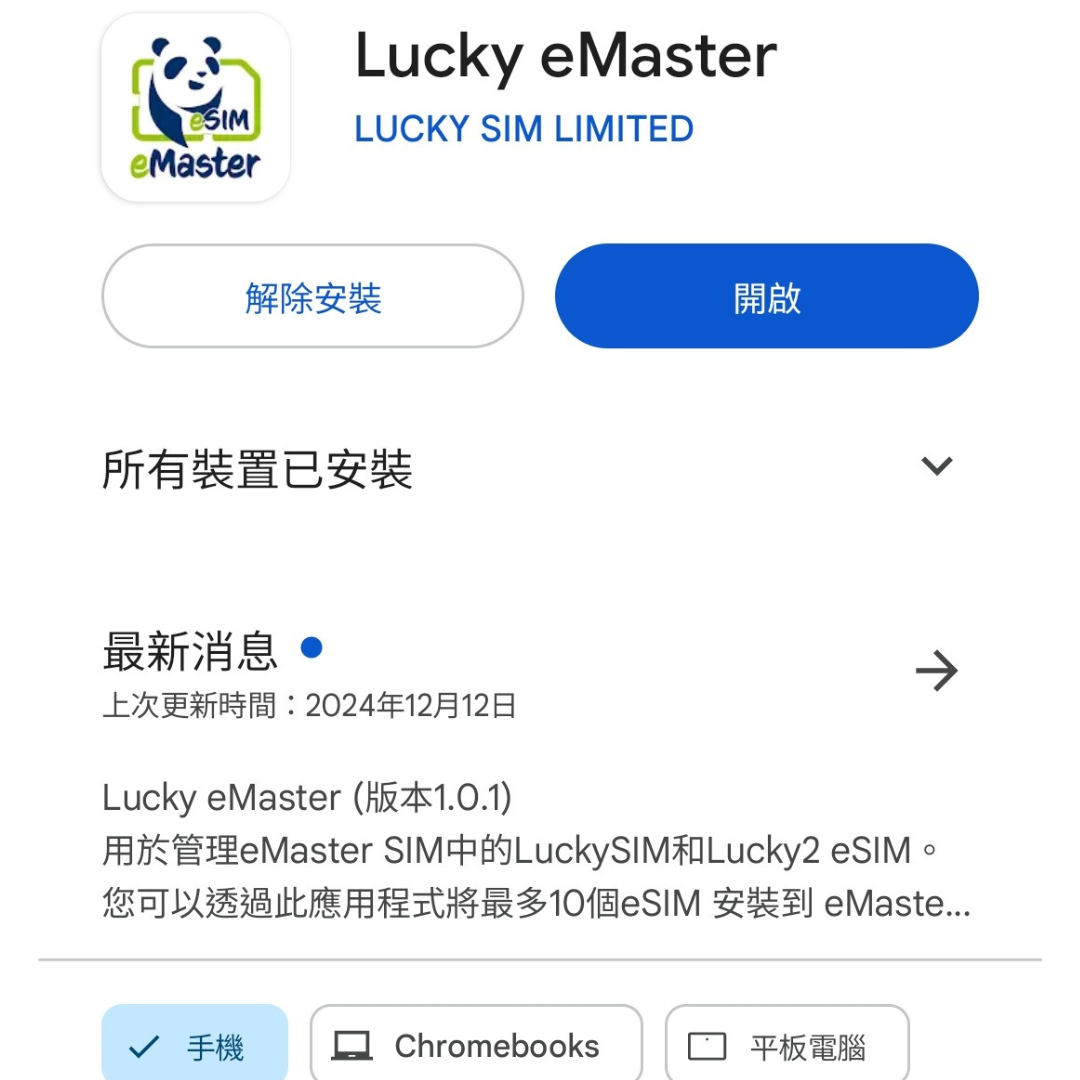
【Step 4】 成功安裝 Lucky eMaster 後,請開啟應用程式 App。
【Step 5】 在 Email 中,會找到已購買 eSIM 的 QR code
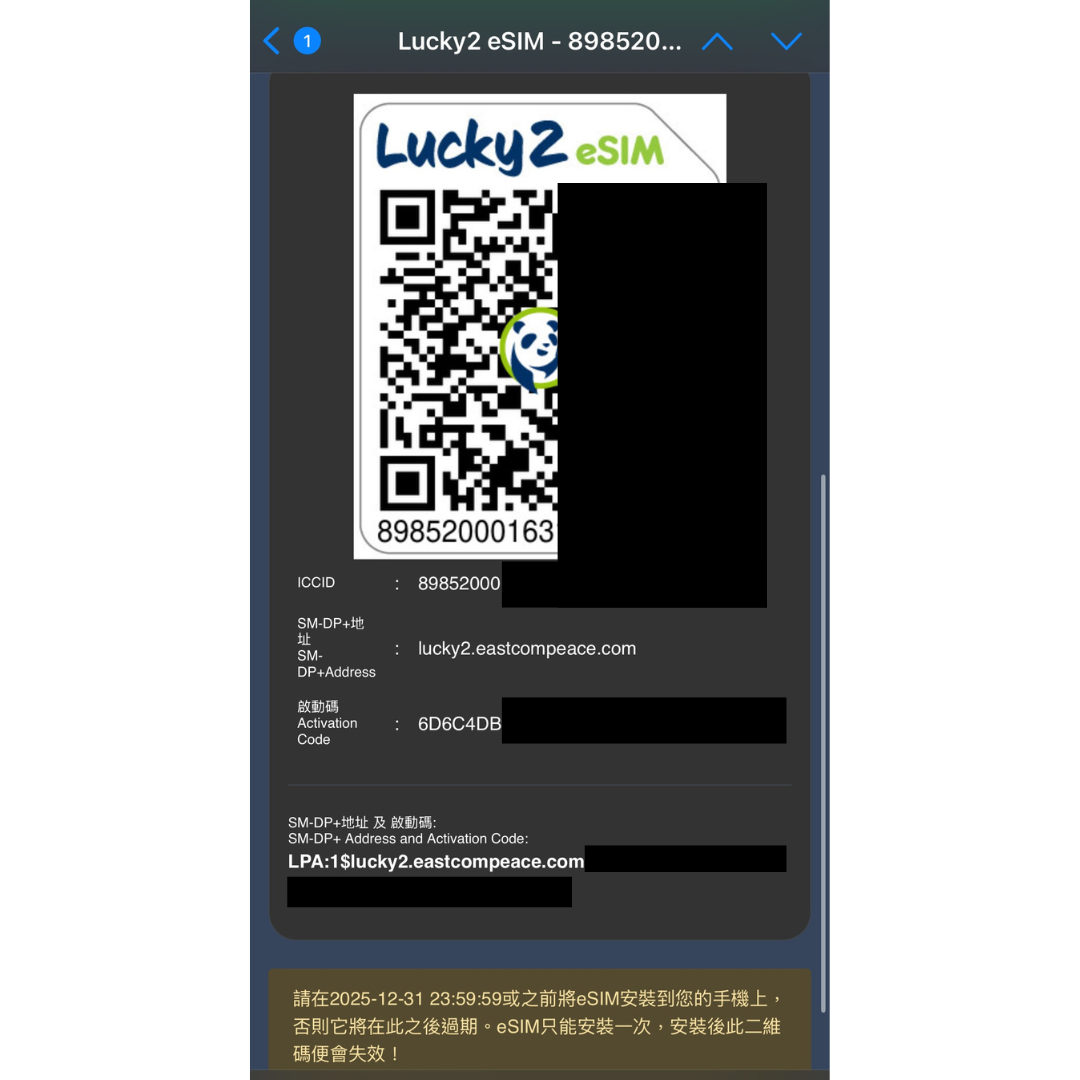
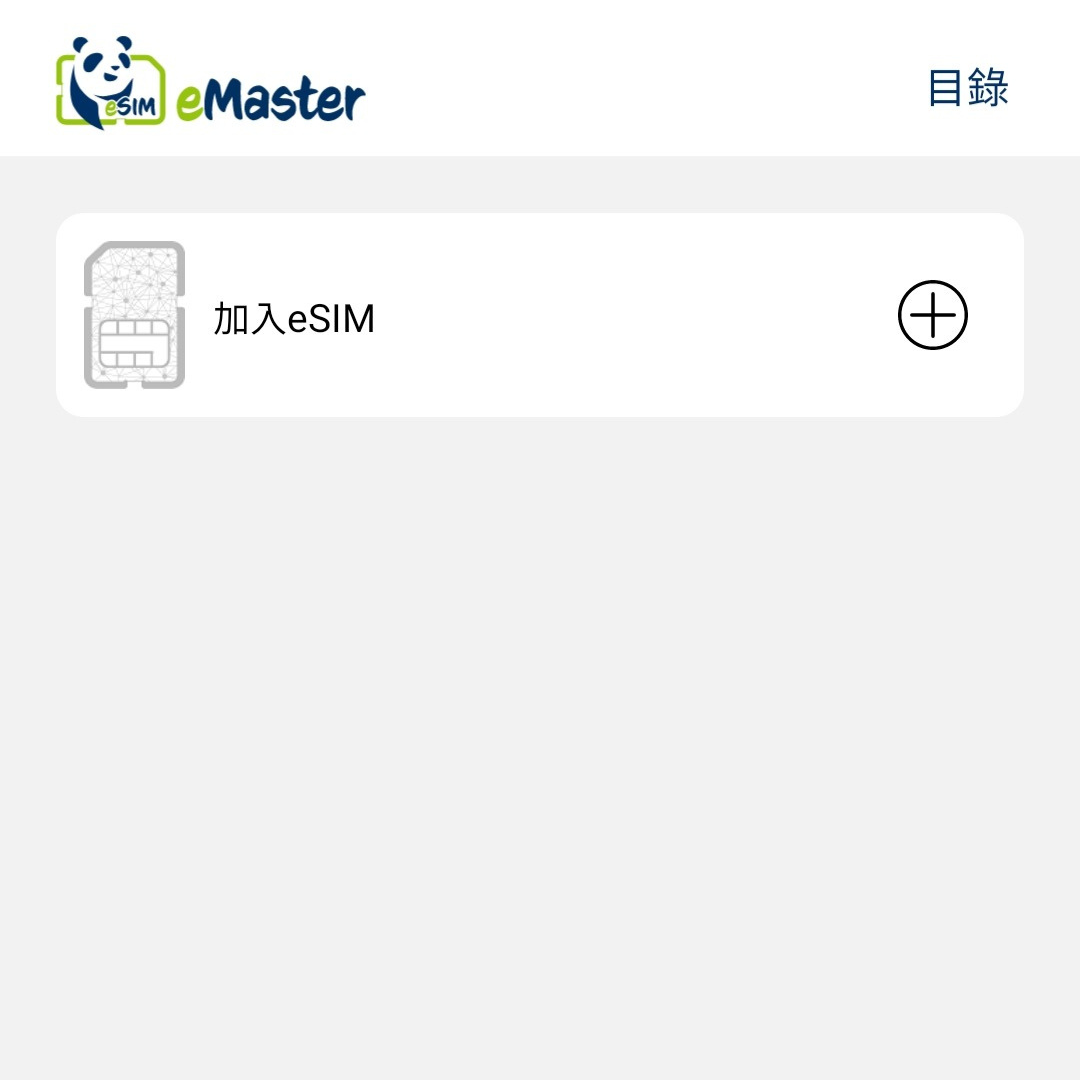
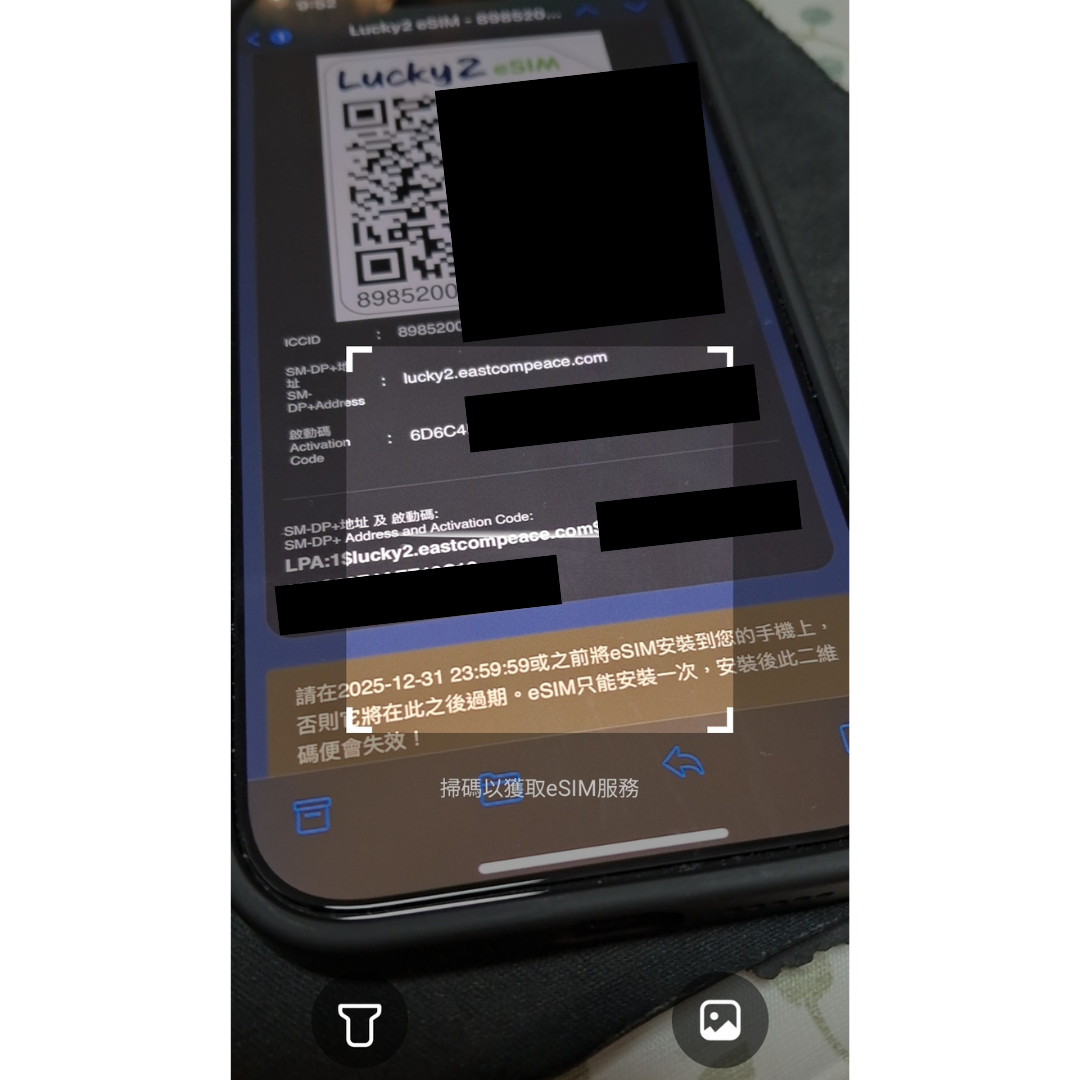
【Step 6】 eMaster App 回到首頁,按「加入 eSIM」,可以選擇其中一種方法開通,將 eSIM 安裝到 eMaster SIM 內:
- a) 掃描二維碼
- b) 輸入啟動碼
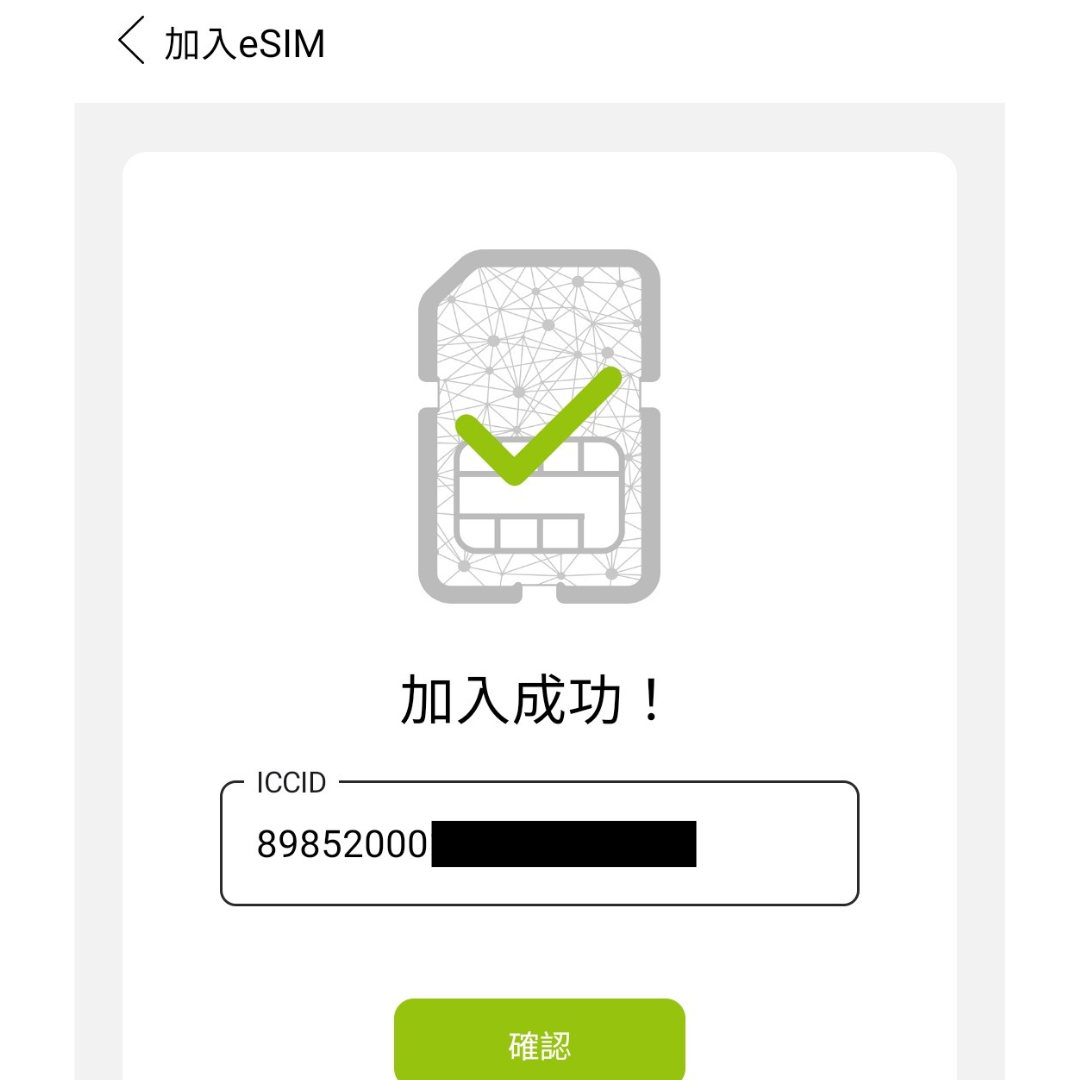
【Step 7】 顯示「加入成功」,代表已成功安裝在 eMaster SIM 內。
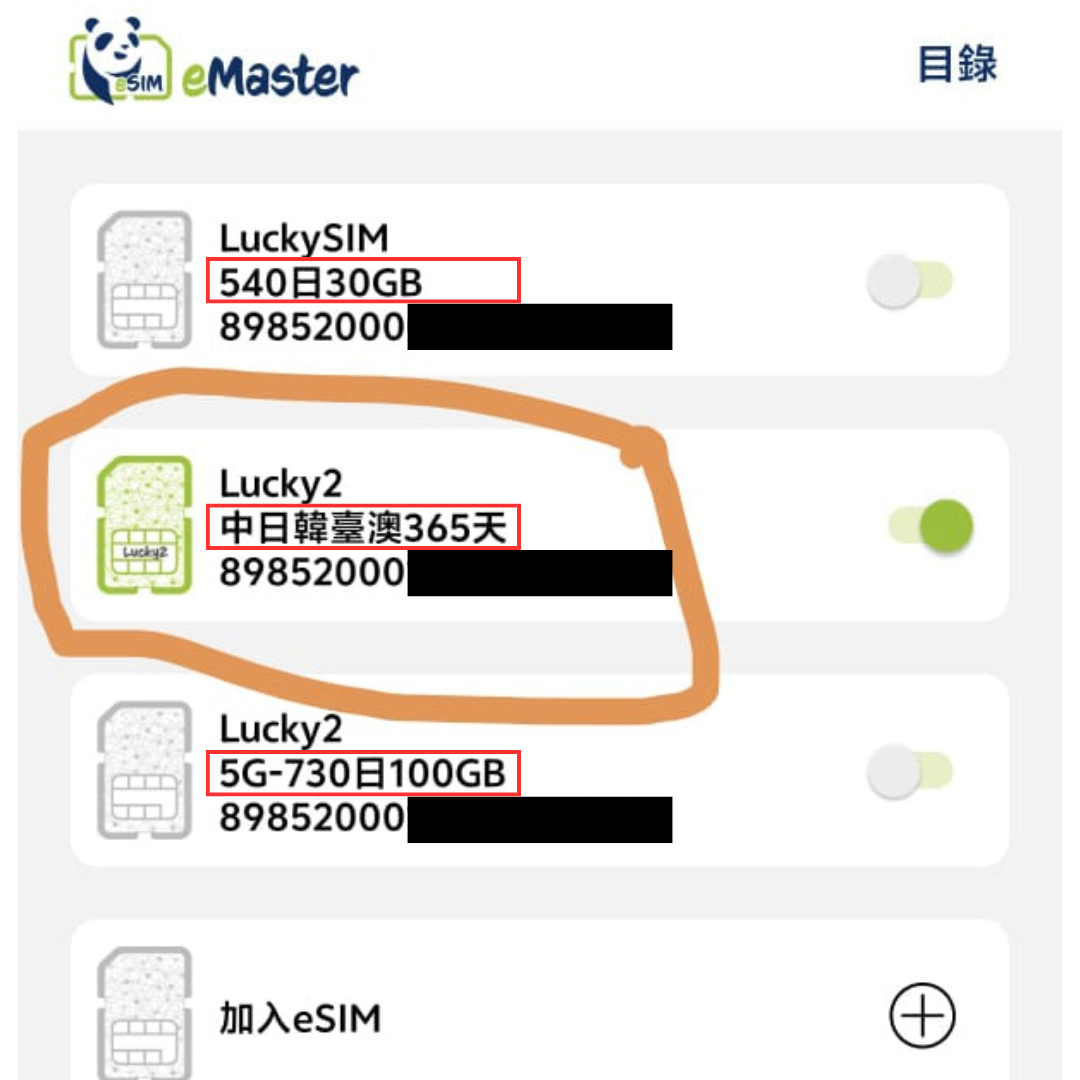
【Step 8】 客人便可透過首頁隨時開關及切換 eSIM,從最多 10 個 eSIM 之中,選 1 個生效。
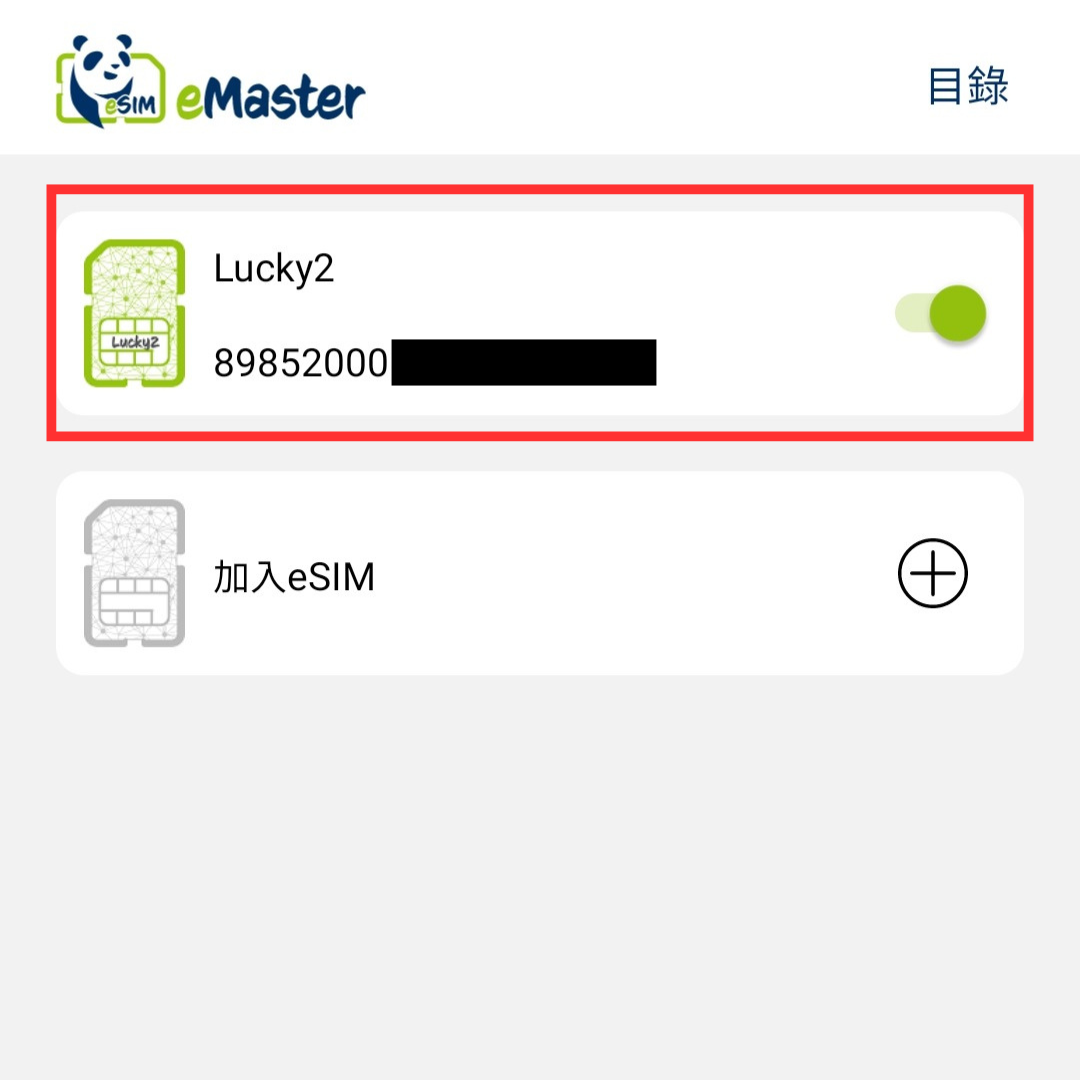
【Step 9】 加入不同的 eSIM 後,可各自更換名稱方便辨認。
原文出處:
https://1worldsim.com/blogs/e-sim-blog/lucky-sim-emaster-sim
Credit to: 1worldsim